Difference between revisions of "How to translate"
m |
|||
| Line 26: | Line 26: | ||
== Step 3. Open files with Net Beans == | == Step 3. Open files with Net Beans == | ||
| − | *Run the Net Beans. You should see the welcome screen. <br> The Net Beans software needs about 256MB of RAM to run and it also takes time to start up. <br> [[Image:NetBeansWelcome.jpg]] | + | *Run the Net Beans. You should see the welcome screen. <br> The Net Beans software needs about 256MB of RAM to run and it also takes time to start up. <br> [[Image:NetBeansWelcome.jpg|Net Beans wecome screen]] |
| − | *Go to "File" menu, and click on "Open File" <br> [[Image:OpenFileMenu.png]] | + | *Go to "File" menu, and click on "Open File" <br> [[Image:OpenFileMenu.png|Open File menu in Net Beans]] |
| − | *Select the file <pre>ecdbc_lang.properties</pre> and click "Open" <br> [[Image:OpenFileLang.png]] | + | *Select the file <pre>ecdbc_lang.properties</pre> and click "Open" <br> [[Image:OpenFileLang.png|Opening language file in Net Beans]] |
| − | *You will see 3 columns, "Key", "default language" and your language. Edit the text in your language column, and '''only''' this column <br> [[Image:Columns.png]] | + | *You will see 3 columns, "Key", "default language" and your language. Edit the text in your language column, and '''only''' this column <br> [[Image:Columns.png|Columns with languages in Net Beans]] |
| − | *When done, press "Save All" button <br> [[Image:SaveAll.png]] | + | *When done, press "Save All" button <br> [[Image:SaveAll.png|Save All button in Net Beans]] |
== Step 4. Send the files to us == | == Step 4. Send the files to us == | ||
Send all the files to [mailto:software@magnum2.pl]. The translation will be included in the nearest software release. | Send all the files to [mailto:software@magnum2.pl]. The translation will be included in the nearest software release. | ||
Revision as of 13:39, 24 September 2005
In order to translate the DataCollectionSoftware into your language, you will need:
- Net Beans from Sun (click to download)
- The base language files (we will send them to you when you tell us the language and country)
To create a translation, take following steps:
Contents
Step 1. Get the files for translation
There are two possibilities to get the files:
- Email [1], tell your (1) language and (2) country and we will email you the files for translation
- Download translation files from the website: read instructions on page "Downloading language files"
Place the language files in one directory on your hard disk, for example in directory C:\trans (you can create it).
Both files have to be in the same directory and their names must be preserved! It means, that there should be two files in your directory, like this:
ecdbc_lang.properties
ecdbc_lang_xx_YY.properties
(xx_YY should be replaced with your language and country codes)
Step 2. Install Net Beans
Download and install the Net Beans from Sun, Net Beans Download Site. Net Beans is necessary to handle all national WikiPedia:diacritic characters, for example: å, æ, ø. It will also take care of the translation file format.
Step 3. Open files with Net Beans
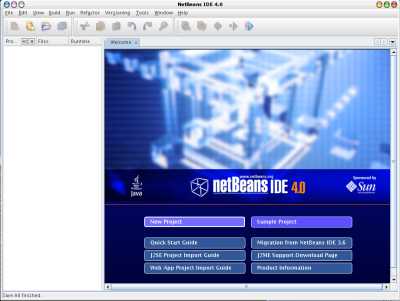
- Run the Net Beans. You should see the welcome screen.
The Net Beans software needs about 256MB of RAM to run and it also takes time to start up.
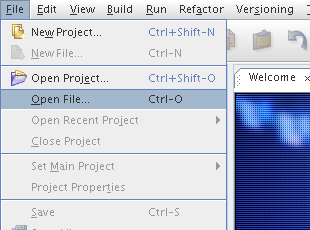
- Go to "File" menu, and click on "Open File"
- Select the file
ecdbc_lang.properties
and click "Open"

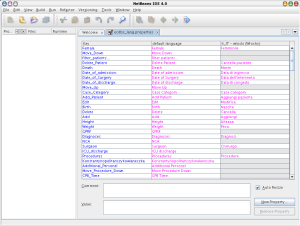
- You will see 3 columns, "Key", "default language" and your language. Edit the text in your language column, and only this column
- When done, press "Save All" button


Step 4. Send the files to us
Send all the files to [2]. The translation will be included in the nearest software release.

